New · October 2026
Barbwire in your AI assistant
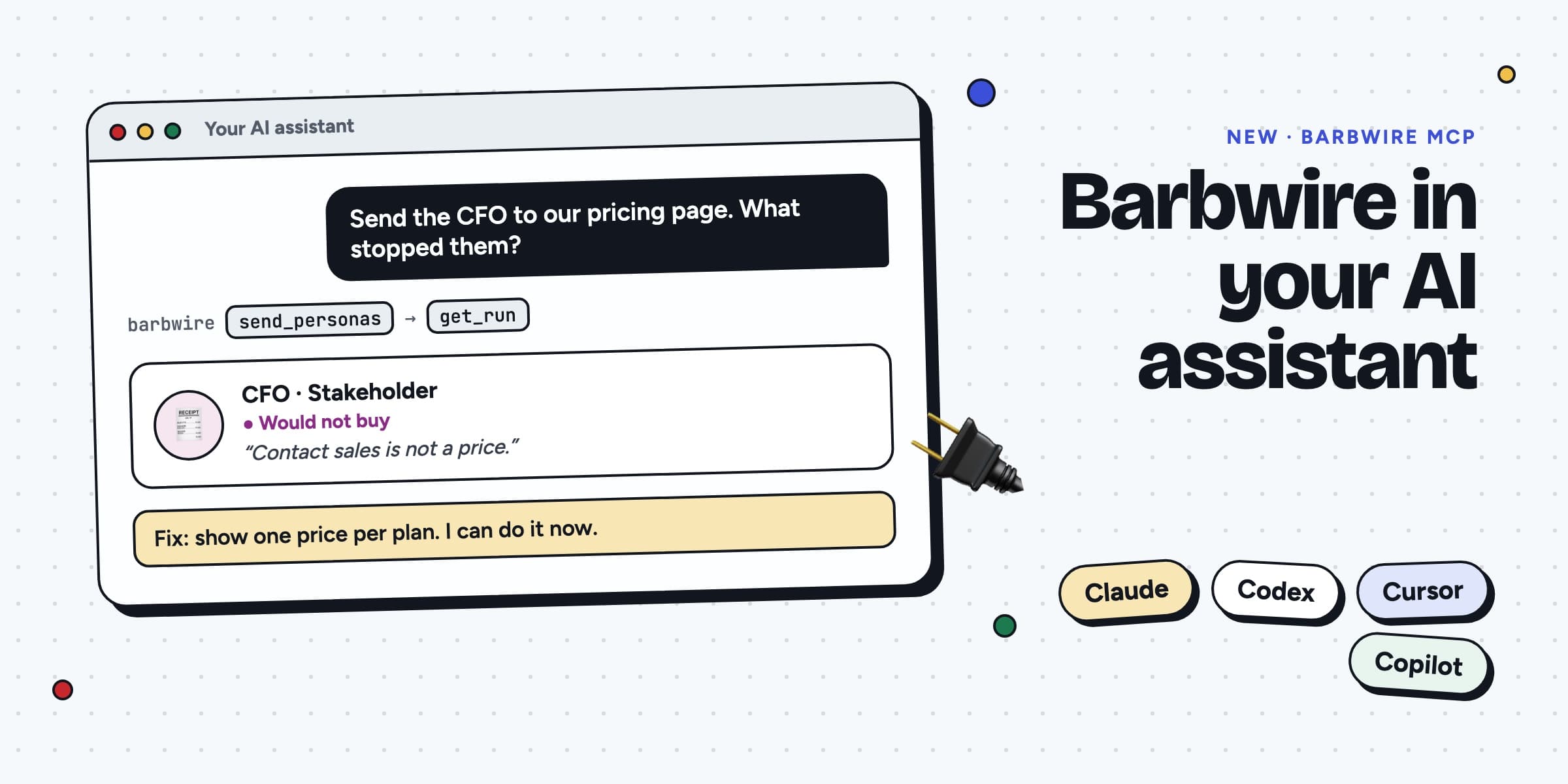
Ask Claude, Codex, Cursor or GitHub Copilot to send a persona to your site. It reads why they would not buy, finds the page that stopped them, and helps you fix it in the same chat.
What you can ask
- “Send the CFO to our pricing page and tell me what stopped them.”
- “Which issues on example.com cost us buyers? Start with the worst one.”
- “I just shipped the new pricing. Send the same personas again and compare.”
- “Mark the price fix done and close the issue.”
- “Our CFOs never need a demo. Take that worry off the CFO persona.”
Connect it
One address for every app: https://barbwire.ai/mcp. Add it once, for you only. The first time the app uses it, a browser opens: sign in to Barbwire and click Allow. No API key to copy.
Claude Code
Run this once. It adds Barbwire for you in every project.
claude mcp add --transport http --scope user barbwire https://barbwire.ai/mcp
Then type /mcp in Claude Code, pick barbwire and sign in.
Codex
Add it, then sign in:
codex mcp add barbwire --url https://barbwire.ai/mcp
codex mcp login barbwire
Cursor
Open this link with Cursor installed, or add the lines below to ~/.cursor/mcp.json.
{
  "mcpServers": {
    "barbwire": {
      "url": "https://barbwire.ai/mcp"
    }
  }
}Then open Cursor Settings → MCP and click Connect next to barbwire.
GitHub Copilot in VS Code
Run this once. It adds Barbwire to your own VS Code profile.
code --add-mcp '{"name":"barbwire","type":"http","url":"https://barbwire.ai/mcp"}'Open Copilot Chat in Agent mode. When VS Code asks, allow it to sign in to Barbwire.
Claude (desktop and claude.ai)
- Open Customize → Connectors, click Add, then Add custom connector.
- Name it Barbwire, paste
https://barbwire.ai/mcpand click Add. - Sign in to Barbwire and click Allow.
- In a chat, open + → Connectors and turn Barbwire on.
What it can do
- list_sites
- Your sites, their personas, the last verdicts and the runs you have left.
- test_site
- Builds personas for a new site from what it says.
- send_personas
- Sends personas in. Each one uses one of your runs.
- get_run
- The verdict, every step with what they thought, and the screenshots.
- list_issues
- What stopped the personas, worst first, with the fix.
- update_issue
- Marks an issue fixed or ignored.
- get_persona
- Who a persona is: what they must see, their deal breakers and worries.
- edit_persona
- Changes a persona so the next runs test a truer buyer. Your team sees what changed and who changed it.
You stay in control
- The app works as you, in your organization, and only after you click Allow.
- Every persona it sends uses one of your runs, the same as a send from the app.
- Runs it sends show “From an AI assistant” and your name, so your team sees who sent what.
- Disconnect an app any time on the Deploy checks page, under AI assistants.